Keyboard shortcuts
A shorter version of this list is in the app under Settings ▸ Shortcuts. Shortcuts are not rebindable yet.
⌘ is the Command key. In a browser on Linux or Windows, ⌘⇧[, ⌘⇧], ⌘W, ⌘B and
⌘⇧F accept Ctrl as well; the rest are Command-only for now.
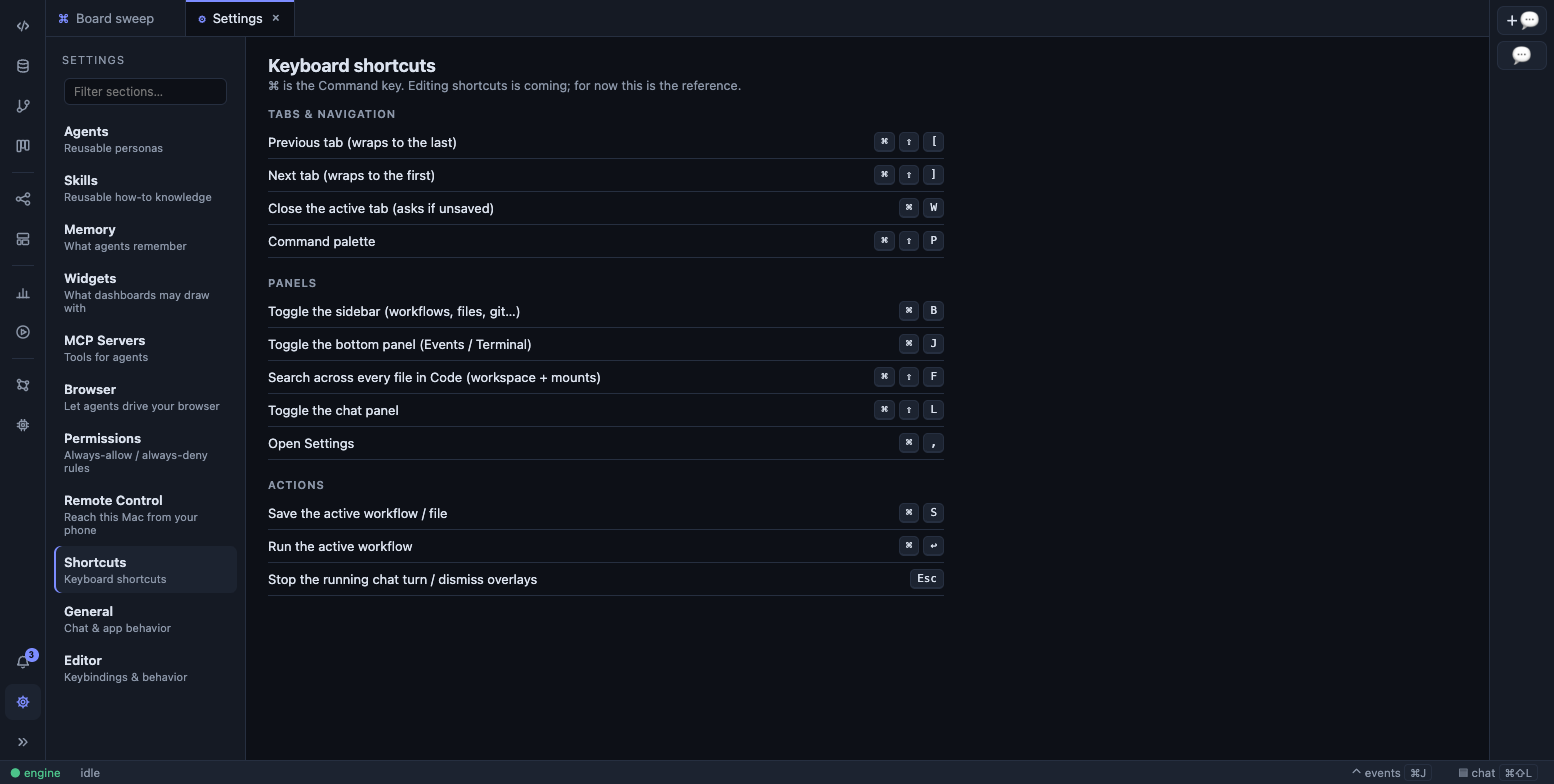
Settings ▸ Shortcuts: the in-app list of chords.
Global
Section titled “Global”One window-level listener owns these, so the ordering between overlapping chords is decided in one place.
⌘⇧P |
Command palette |
⌘⇧[ / ⌘⇧] |
Previous / next tab in the focused editor column (wraps both ways) |
⌘W |
Close the focused column’s active tab — asks first if it is unsaved or busy |
⌘B |
Toggle the sidebar, without changing which view it holds |
⌘J |
Toggle the bottom panel (Events / Problems / Terminal) |
⌘⇧L |
Toggle the chat panel |
⌘⇧F |
Search across every file in Code — the workspace and every mount |
⌘S |
Save the active file, workflow, or vault note |
⌘⏎ |
Run the active workflow (saving first if it is dirty) |
⌘, |
Settings |
Esc |
Stop the running chat turn, dismiss overlays, clear a tree selection |
⌘⇧F puts you in the Code view with the cursor already in the search box; pressing it
again while the box is open re-focuses and selects it rather than doing nothing.
In the packaged desktop app
Section titled “In the packaged desktop app”The native menu bar adds a few of its own, and its ⌘W and ⌘, are the ones that fire.
⌘W |
File ▸ Close Tab — closes the active document, same as the in-app chord |
⌘⇧W |
File ▸ Close Window |
⌘⇧M |
View ▸ Models |
⌘⇧B |
View ▸ Brain Graph |
⌘, |
Settings ▸ Agents |
The standard Electron items are also present — reload, developer tools, zoom, full screen, and the usual Edit menu (cut / copy / paste / select all), which is also what the right-click menu in the workbench offers.
Command palette
Section titled “Command palette”⌘⇧P opens a fuzzy palette over everything the workbench can do. Recently-run entries
float to the top; typing narrows by fuzzy match and underlines the characters that matched.
↑ / ↓ |
Move the selection |
Home / End |
First / last result |
⏎ |
Run the highlighted command |
Esc |
Close |
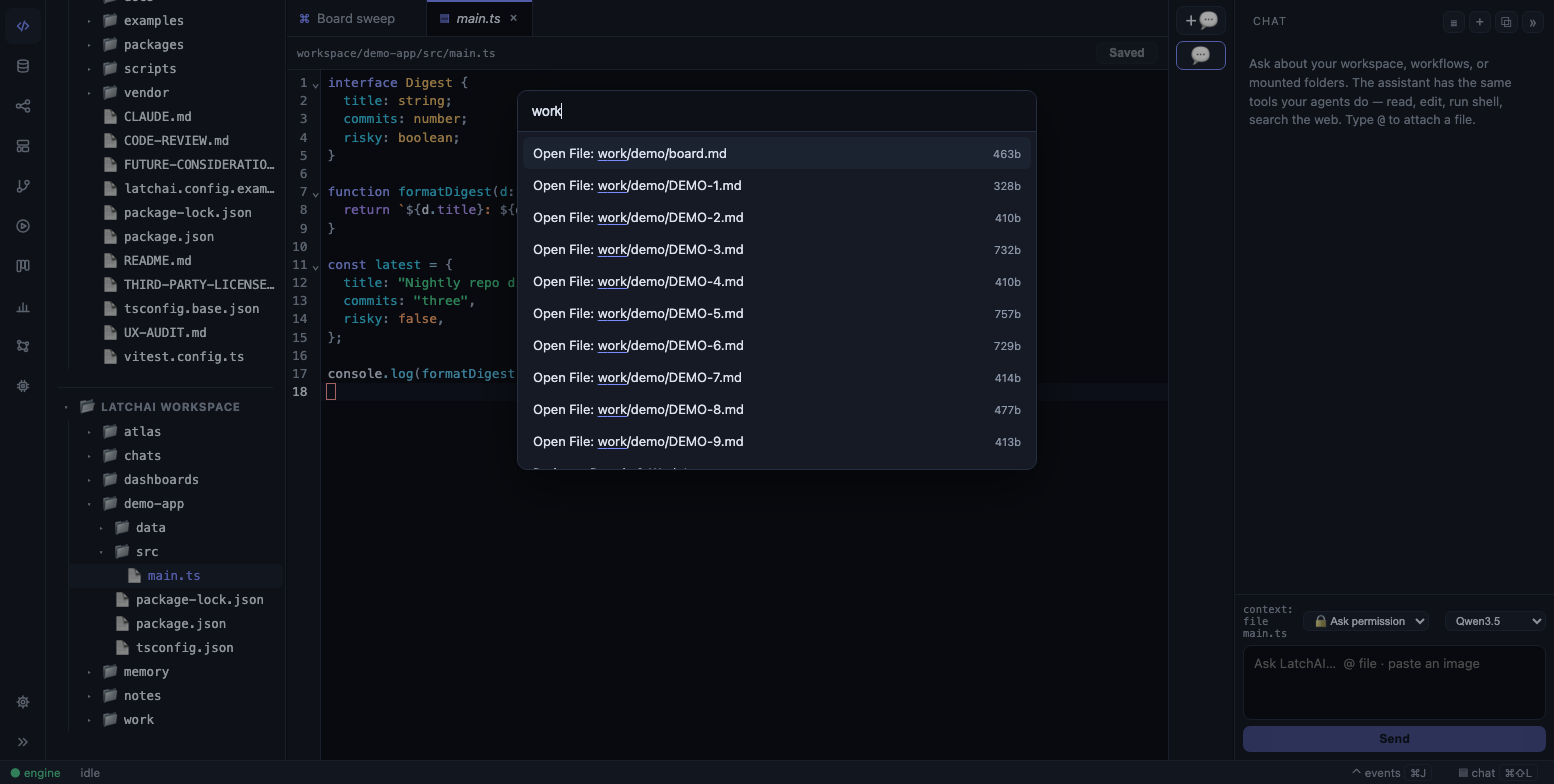
The palette lists commands, files, workflows, dashboards and code maps in one fuzzy list.
Editor
Section titled “Editor”⌘S |
Save the active buffer (Monaco claims this itself, so it works inside the editor too) |
⌘K |
Inline edit — rewrite the current selection from a prompt. Does nothing with an empty selection |
⏎ / Esc |
Apply / cancel, once the ⌘K prompt bar is open |
Tab |
Accept the AI autocomplete’s ghost text (Monaco only, and only when AI autocomplete is on in Settings ▸ Editor) |
:w |
Save, in Vim mode — wired to the same handler ⌘S uses, in both engines |
Both editor engines — CodeMirror 6 by default, Monaco by choice — share the theme, ⌘K,
:w and the save handler. See Editor.
File tree
Section titled “File tree”Selection follows VS Code’s rules.
| Click | Open the file (or expand the folder) and select just that row |
⌘-click |
Add or remove one row from the selection — never opens it |
⇧-click |
Extend the selection from the anchor over the visible rows |
Esc |
Clear the selection |
Git panel
Section titled “Git panel”⏎ or Space |
With the repo line focused, open that repo’s review tab |
⏎ |
Send — or queue the message when a turn is already running |
⇧⏎ |
Newline |
Esc |
Stop the running turn |
/ |
Open the slash-command popover (at the start of the composer) |
@ |
Open the file-mention popover |
⌘V |
Paste an image into the composer |
While the slash or mention popover is open it owns the keyboard:
↑ / ↓ |
Move through the matches |
Tab |
Complete the highlighted entry into the composer |
⏎ |
Complete it — or, when the token you typed already names it exactly, run it |
Esc |
Close the popover; the composer gets ⏎ back |
⇧⏎ is always a newline, whatever popover is on screen.
Workflow canvas
Section titled “Workflow canvas”⌘⏎ |
Run the workflow (saves first) |
⌘S |
Save |
Backspace / Delete |
Delete the selected nodes and their edges — always behind a confirm, because an accidental multi-node delete used to be silent |
Esc |
Close the node picker or an edge menu |
Deleting is not written to disk until you save; Discard restores the file.
Database
Section titled “Database”In a SQL query tab:
⌘⏎ |
Run — the selection if there is one, otherwise the statement at the caret |
In a results grid:
↑ ↓ ← → |
Move the active cell |
⇧ + arrows |
Extend the selection from the anchor |
⌘C |
Copy the selected range |
⏎ |
Start editing the active cell (editable results only) |
Esc |
Close the value dock |
Terminal
Section titled “Terminal”The terminal in the bottom panel (⌘J) is a real shell, so the app gets out of its way:
Ctrl+B typed inside the terminal reaches the shell, not the sidebar — it is tmux’s
prefix and readline’s back-one-char, and both must work. ⌘B still toggles the sidebar
from anywhere, including the terminal.
Vim mode
Section titled “Vim mode”Turn it on in Settings ▸ Editor, or from the palette (⌘⇧P → Toggle Vim Mode). The
choice is remembered across restarts and applies to every editor in the app — files, the
workflow JSON view, SQL query tabs, and inline edit — in either engine. CodeMirror uses
Replit’s vim engine and Monaco uses monaco-vim, which vendors the same one, so the motions
are the same in both.
:w |
Save, through the app’s own save handler |
⌘⏎ |
Still runs the SQL in a query tab — it is bound above vim’s own keymap |
Everything else is the vim engine’s standard vocabulary; LatchAI adds no motions of its own.
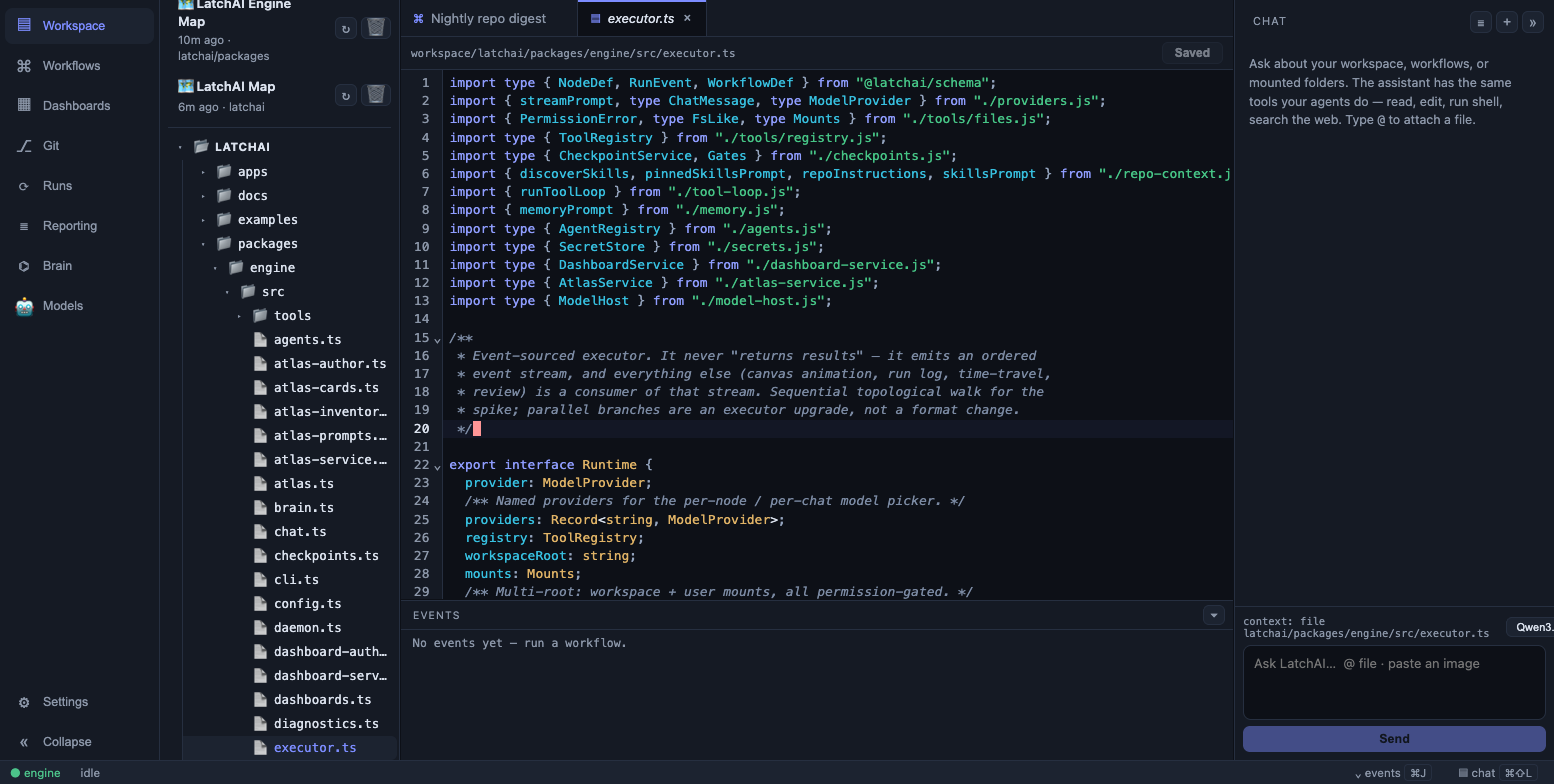
Vim mode is one setting for every editor in the app.
Dialogs and overlays
Section titled “Dialogs and overlays”⌘⏎ |
Confirm a multi-line box — quick capture, a work-item comment, the dashboard and atlas “describe the change” fields |
⏎ |
Confirm a single-line prompt, or commit a rename |
Esc |
Cancel a prompt, close the image lightbox, dismiss a context menu, cancel a rename |
⌘S |
Save the open note |
⌘-click a [[wikilink]] |
Open the note it names — or, if nothing has that name yet, offer to create it |
Slash commands
Section titled “Slash commands”Typing / at the start of the chat composer opens a popover of the commands below. The
parse is deliberately narrow: a line is a command only when it starts with / and its
first token names one of these. /usr/local/bin, /unknown and hey /new are prose and go
to the model exactly as typed. A slash command is never sent to the model — it is
intercepted, run, and the composer is cleared.
| Command | Takes | What it does |
|---|---|---|
/rename |
<title> |
Rename this chat. With no title, it opens the tab label for editing in place |
/new |
— | Start a new chat |
/stop |
— | Stop the turn that is running (it says so if nothing is) |
/mode |
<ask|allow> |
Show or set when this chat asks before running a tool |
/help |
— | List every slash command |
That is the whole registry. /mode takes exactly ask or allow — “deny” is a decision
you make on an individual permission card, not a session mode, so /mode deny is rejected
with the two valid values.
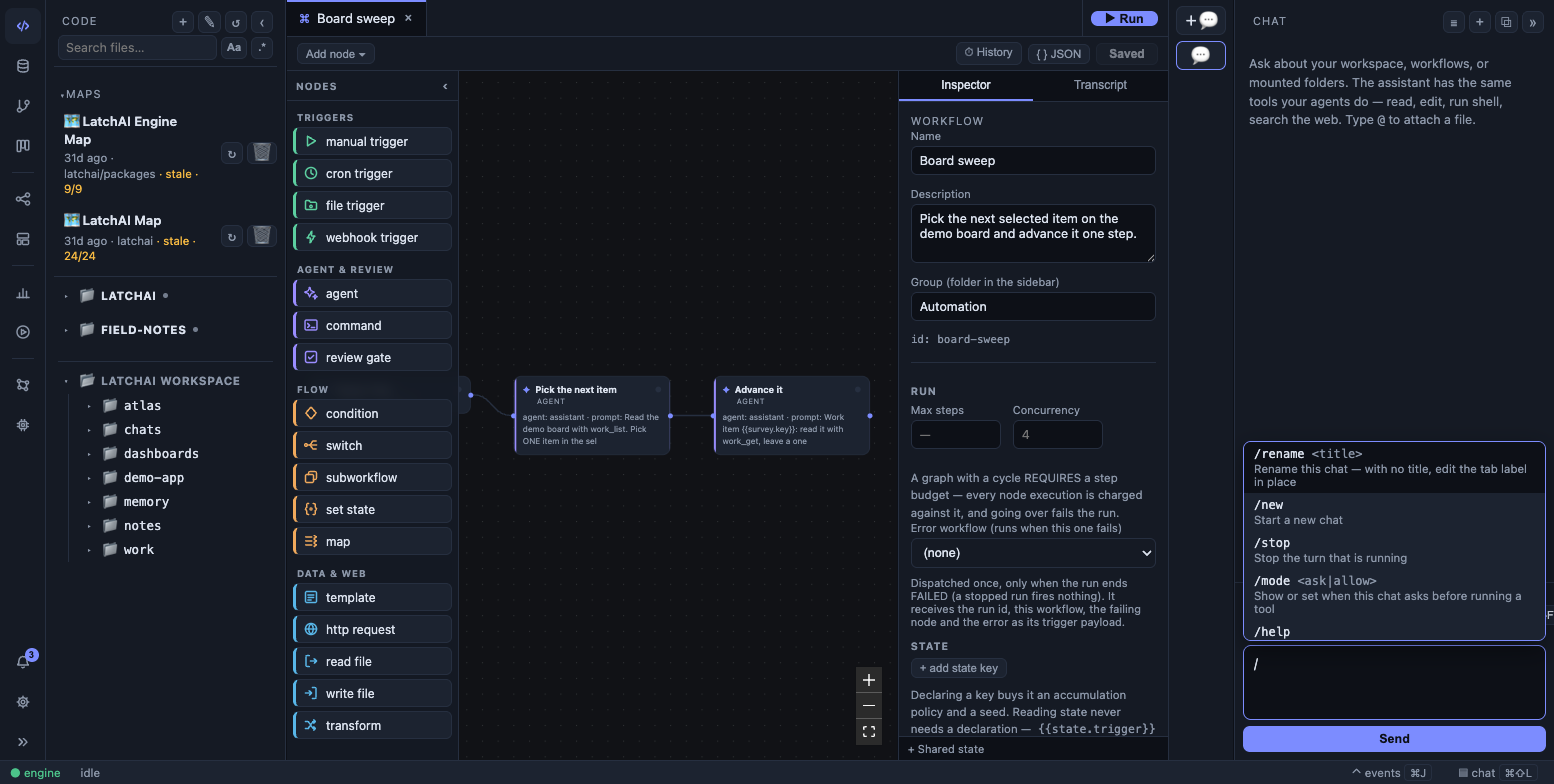
Type / in the composer and the popover lists the slash commands.
What the command palette can do
Section titled “What the command palette can do”The palette’s fixed entries, in the order it lists them:
| New Workflow | Creates a draft |
| New Dashboard | Describe it in words |
| New Chat Tab | Chat in the editor area rather than the side panel |
Search in Files (⌘⇧F) |
In Code — workspace + every mount |
| Database: Add Connection | A SQLite file or a Postgres URL |
| Split Editor | Clone the active tab into a new column |
| Open to the Side | The active tab, in the next column |
Save (⌘S) |
Workflow / file |
| Toggle Vim Mode | Editors |
Settings: Models, Agents & MCP (⌘,) |
|
| Usage | Runs, tokens, cost & transcripts |
| Monitor: Live Run Feed | Watch running workflows |
| Brain: Provenance Graph | Workspace scope — agents, runs, files, stories |
| Projects: Boards & Work Items | Kanban lanes over workspace/work/ |
| Vault: Notes | People, orgs, projects, decisions… |
| Vault: Graph | Notes, links & the ones worth writing |
| Vault: New Note | Pick a type — the template follows |
| Vault: Inbox | Accept or reject what agents wrote |
| Vault: Quick Capture | Tell the vault something; it files it |
| Secrets: Manage | Credentials |
| View: Toggle Canvas / JSON | The active tab — only listed when that tab is a workflow |
View: Toggle Events Panel (⌘J) |
|
View: Toggle Chat Panel (⌘⇧L) |
|
View: Toggle Sidebar (⌘B) |
Workflows, files, git… |
The rest of the palette is generated from what you actually have, so it grows as you work:
- New Query:
<connection>— one per saved database connection - Add Node:
<type>— one per workflow node type, filed under the same category the canvas palette uses - Run:
<workflow>and Open:<workflow>— one pair per workflow - Open Dashboard:
<name>and Build Dashboard:<name>— one pair per dashboard - Visualize:
<mount>— a standard code map of a mounted folder - Open Atlas:
<name>and Build Atlas:<name>— one pair per code map - Open File:
<path>— every file in the workspace and its mounts