Editor
The editor is a real editing surface, not a preview pane. It is CodeMirror 6 by
default, or Monaco — the VS Code editor — by choice, themed to the workbench, with an
optional Vim mode in both; files open as tabs with dirty tracking and ⌘S saves through a
workspace-guarded endpoint. Everything you can open, the agents can see — and nothing
outside the workspace and its mounts is reachable by either of you.
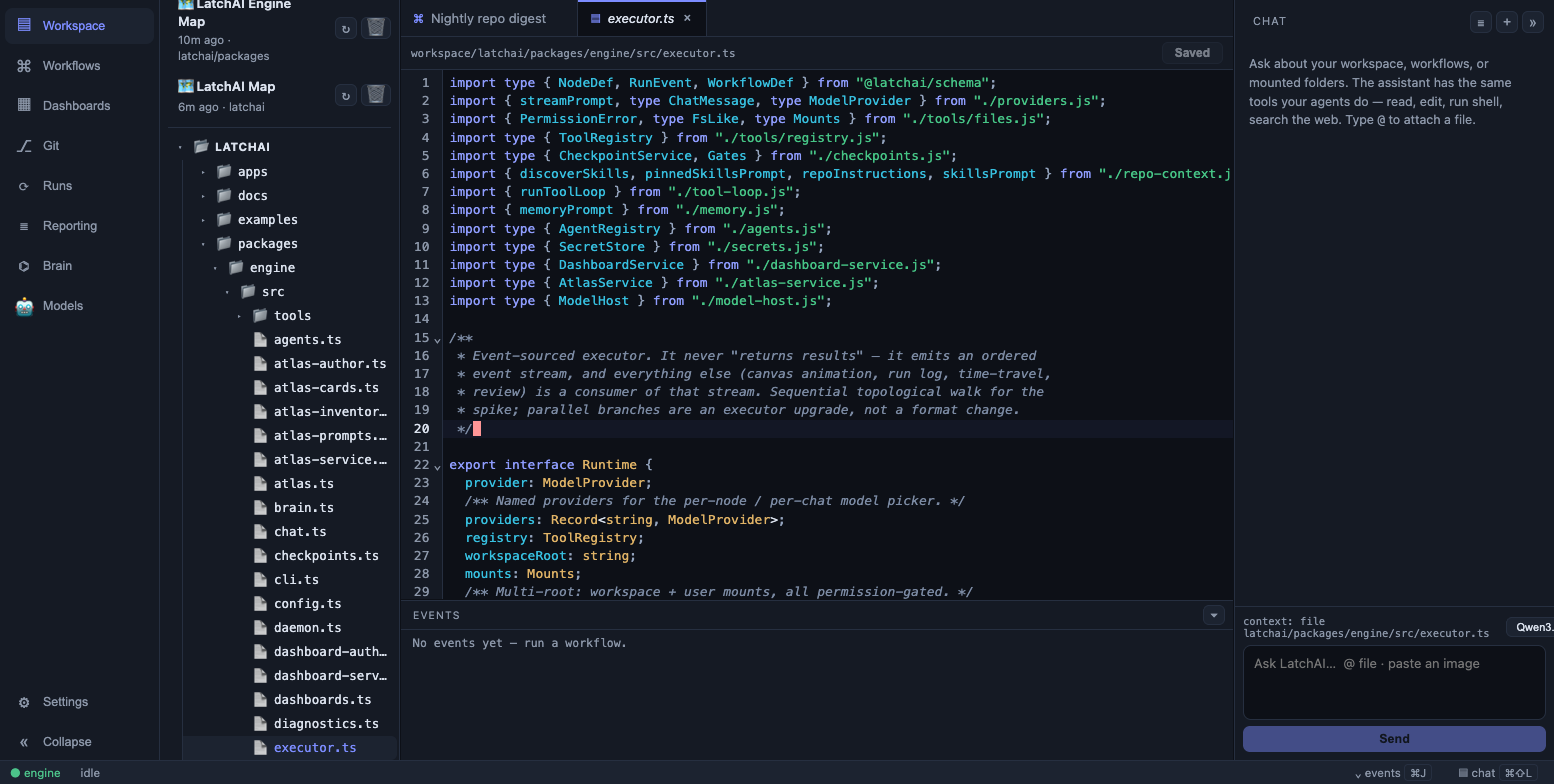
Vim mode is a single setting that applies to every editor in the app; :w calls the app’s own save handler.
Two engines, one seam
Section titled “Two engines, one seam”Settings ▸ Editor picks the engine: CodeMirror 6 (default) or Monaco (VS Code).
Both share the theme, the keybindings, ⌘K, and :w; Monaco downloads a few extra
megabytes the first time it’s chosen. The app never reaches into an editor — the two things
they share are the save handler behind :w/⌘S and the inline-edit call — which is what
makes swapping them a setting rather than a fork.
Four things need Monaco’s own machinery and are therefore Monaco only: sticky scroll (the enclosing scope pinned to the top of the viewport), the git change gutter, the Problems panel, and AI tab completion. With CodeMirror selected they are simply absent — the Problems tab shows its empty state rather than an error.
Vim mode
Section titled “Vim mode”Turn it on in Settings ▸ Editor, or from the command palette (⌘⇧P → Toggle Vim
Mode). The choice is remembered across restarts and applies to every editor in the app —
files, the workflow JSON view, SQL query tabs, and inline edit, in either engine. :w is
wired to the same save handler ⌘S uses, so writing a file the way your fingers already
know does the right thing.
The explorer lives in the Code view and shows every
mounted folder as a virtual top-level directory,
expanded by default, with LatchAI’s own workspace sandbox as a collapsed root at the
bottom — reachable without cluttering the view of the code you actually came to edit.
It behaves like an explorer you already know:
- Multi-select with
⌘(add one) and⇧(extend a range). Delete and Copy act on the whole selection; Rename stays single-target. - Drag and drop to move — a drag started on a selected row carries the whole selection, a hovered collapsed folder springs open mid-drag, and a batch move asks once before it runs. Dropping a folder into its own subtree, or onto the parent it already sits in, is refused as a no-op.
- Copy, Duplicate and Paste on an internal clipboard, picking a free name rather than overwriting. Also on the menu: New File…, New Folder…, Rename…, Delete, Copy Path, Copy Relative Path, Reveal in Finder, and Remove from Code on a mount root.
- Drops from Finder land in the folder you drop them on.
Git status, everywhere at once
Section titled “Git status, everywhere at once”One git status per discovered repo fills a single map that the tree, the tab strip and
the editor gutter all read, so no two surfaces can disagree about what changed. Rows and
tabs carry a letter and a colour — M modified, A added (staged), U untracked,
D deleted — and a folder with anything changed underneath it gets a roll-up dot. It
refreshes as the repo changes on disk, with a settle so a build writing two hundred files
re-reads once.
Search across everything
Section titled “Search across everything”⌘⇧F focuses the search box at the top of Code; its results take over the panel below for
exactly as long as the box has something in it, and the tree comes back when you empty it.
The sweep covers the workspace and every mount, with case-sensitive and regex toggles.
Results are grouped by file with the matched span painted; click a hit to open the file at
that line.
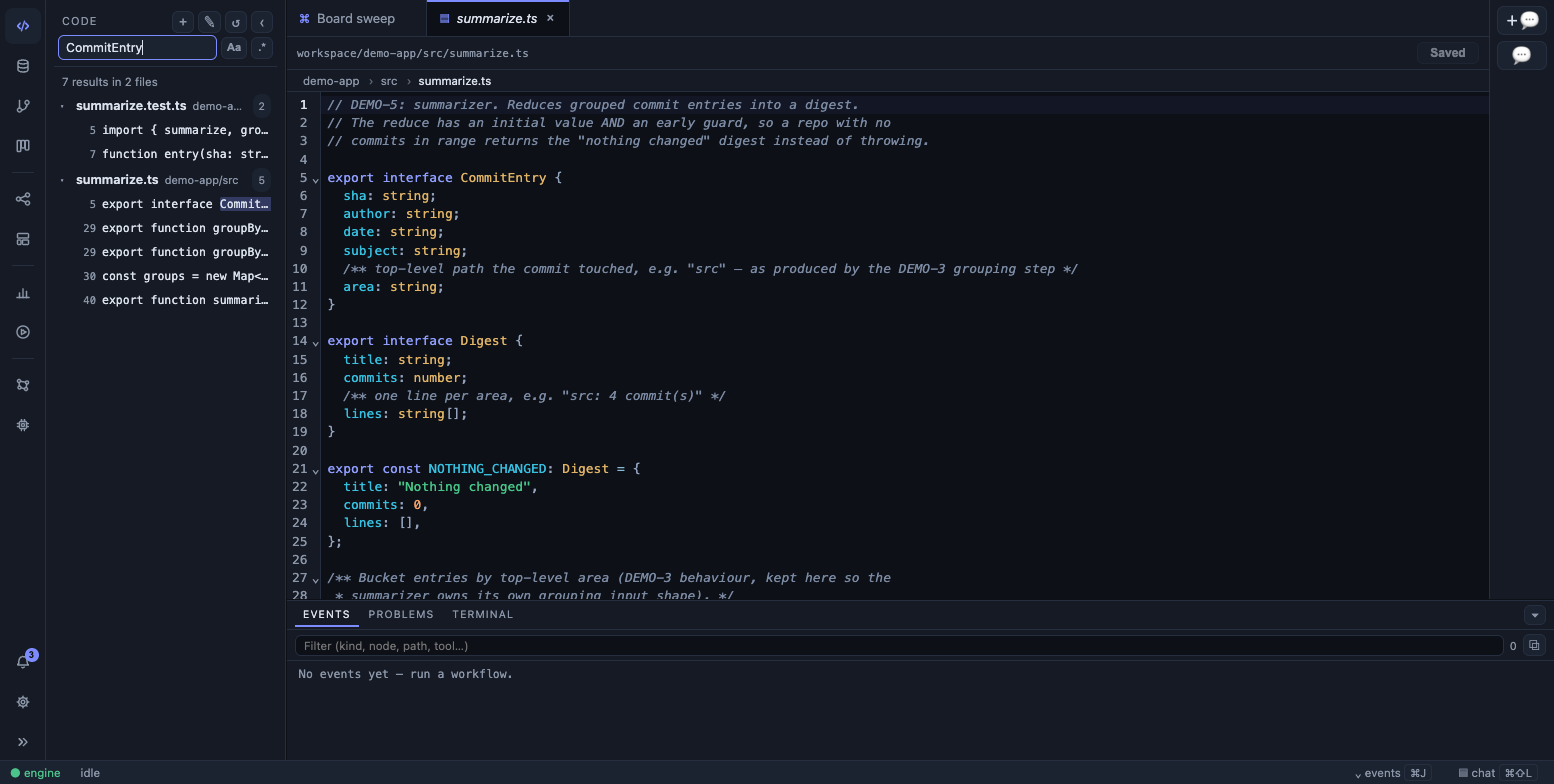
⌘⇧F: matches grouped by file, with the case and regex toggles beside the query. The engine refuses rather than grinds: files over 1 MB are never read, anything with a NUL byte in its first 8 KB is treated as binary and dropped, a query under two characters is rejected outright, and the answer is capped at 500 matches across 100 files — reported as truncated rather than quietly returned short. An invalid regex comes back with the regex engine’s own message, because you are mid-pattern and that message is the whole feedback.
Tab behaviour follows VS Code’s grammar:
- A single click opens a preview tab, shown in italics; the next single click replaces it. Double-click a file (or its tab) to pin it. A dirty tab is never a preview.
- Tabs drag to reorder, and right-click for a context menu (Close, Close Others, Close All, Open to the Side).
- Activating a file tab reveals that file in the tree — un-collapsing its root, expanding every ancestor, and scrolling the row into view.
- A dirty tab shows a dot;
⌘Ssaves the active one.⌘⇧[and⌘⇧]cycle tabs;⌘Wcloses one, asking first if it’s unsaved. Two open files with the same basename disambiguate by their parent folder. - Breadcrumbs. A file tab shows its path as a row of segments above the editor; click a folder to reveal it in the tree, or the file to reveal itself.
- Split columns. Split Editor clones the active tab into a new column, Open to the Side moves it, and a tab dragged onto another column’s body moves or splits there. Each column cycles its own tab strip.
- Hot exit. Closing the window with unsaved edits doesn’t lose them: dirty buffers are snapshotted and come back dirty on the next launch. Since 0.9.0 a render crash writes the same backup before showing its crash screen, a throwing tab or widget fails in its own slot while everything around it keeps working, and a restored buffer whose file read fails keeps your unsaved text and marks it for review instead of dropping the tab.
The tree also carries the Code Atlas affordances: a Maps section above the tree listing your code maps, and a 🗺 hover action on mount roots and their top-level folders that builds one.
Workflow tabs are special: they toggle between Canvas and JSON, and both views project the same draft, so a Vim edit to the JSON appears on the canvas and vice versa.
The activity bar
Section titled “The activity bar”The rail is grouped by the job rather than the widget kind:
| Group | Entries |
|---|---|
| Development | Code, Database, Git, Projects |
| Automation | Workflows, Dashboards |
| Audit | Usage, Runs |
| Intelligence | Brain, Models |
Git and Runs carry badges — the count of changed files across your repos, and the runs in
flight. A notifications bell and Settings sit in the bottom cluster. The bar collapses to
icons only (⌘B hides it entirely).
The command palette
Section titled “The command palette”⌘⇧P opens a fuzzy palette over everything the workbench can do: every file by path,
every workflow (Open:, Run:), every dashboard and atlas (Open, Build), every mount
(Visualize:), every database connection (New Query:), every node type (Add Node:),
and the fixed commands — New Workflow, New Dashboard, New Chat Tab, Search in
Files, Database: Add Connection, Split Editor, Open to the Side, Save, Toggle Vim
Mode, Settings, Usage, Monitor: Live Run Feed, Brain: Provenance Graph, Projects:
Boards & Work Items, the five Vault: entries, Secrets: Manage, and the view toggles.
Matching is subsequence fuzzy with the matched letters highlighted, and the commands you ran
most recently float to the top.
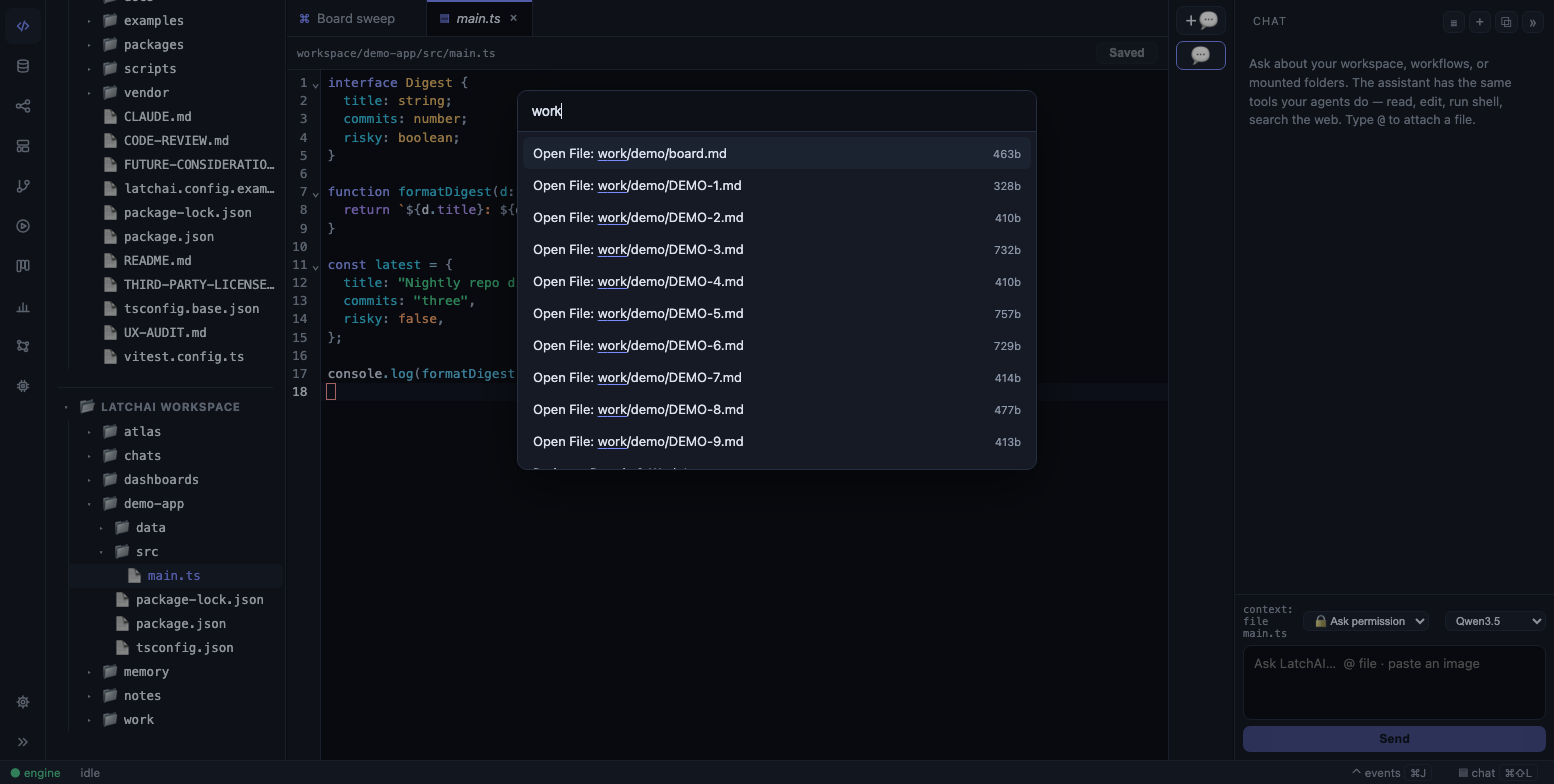
Every file, workflow, dashboard, atlas, node type, and command — one fuzzy list.
Shortcuts
Section titled “Shortcuts”Settings ▸ Shortcuts lists them, and so does the shortcuts reference. The set today:
| Chord | What it does |
|---|---|
⌘⇧P |
Command palette |
⌘⇧[ / ⌘⇧] |
Previous / next tab (wraps) |
⌘W |
Close the active tab (asks if unsaved) |
⌘B |
Toggle the sidebar |
⌘J |
Toggle the bottom panel (Events / Problems / Terminal) |
⌘⇧F |
Search across every file in Code (workspace + mounts) |
⌘⇧L |
Toggle the chat panel |
⌘, |
Settings |
⌘S |
Save the active file or workflow |
⌘⏎ |
Run the active workflow |
Esc |
Stop the running chat turn; dismiss overlays |
They are not rebindable yet. ⌘K is an editor-local binding rather than a workbench chord —
see Inline edit — and Ctrl+B is deliberately let through to the shell when
the terminal has focus, so tmux and readline still work.
Tab autocomplete
Section titled “Tab autocomplete”With Monaco selected, ghost text appears at the cursor when you pause; Tab accepts it.
It is on by default, with a toggle and its own Completion model slot in
Settings ▸ Editor. That slot takes any configured provider — a hosted API, an
OpenAI-compatible endpoint, or a downloaded local model — and default follows the app’s
pinned default. A small, fast model suits this far better than the one you chat with, and
it is the same slot apply-from-chat merges with.
It calls the model on every pause, so it spends tokens the whole time you are editing. Turn it off if that isn’t a trade you want.
The mechanics are all about not doing that too often: a 250 ms idle gate so a burst of
typing is one request, a small cache so backspacing and retyping costs nothing, an abort
when the cursor moves, 8,000 characters of prefix and 2,000 of suffix, a ceiling of 256
tokens and ten lines, and a 15-second timeout. Every failure — feature off, unknown
provider, model error, timeout, nothing usable — is the same silent “no suggestion”, because
nobody asked for the request and nobody should be interrupted by it failing. The offline
mock provider is refused by name. A file with a request actually on the wire shows a quiet
pulse on its tab.
Inline edit
Section titled “Inline edit”Select code, press ⌘K, describe the change, and the provider rewrites the selection in
place. It is the smallest possible unit of AI editing — no conversation, no plan, just a
transformation you can undo. Enter applies, Esc cancels, and a failed request leaves
your selection untouched. It works in both engines; in Monaco, ⌘K is taken off Monaco’s
own chord prefix to make room for it.
The bottom panel
Section titled “The bottom panel”⌘J toggles it. Three tabs: Events — the raw event stream, the same entries a run
writes to its log, live — plus the two below.
Problems
Section titled “Problems”Diagnostics for the files you have open, grouped by file, with an error-plus-warning count badged on the tab. Click a row to open its file at the line. They come from Monaco’s own language workers, so this tab fills only with the Monaco engine selected.
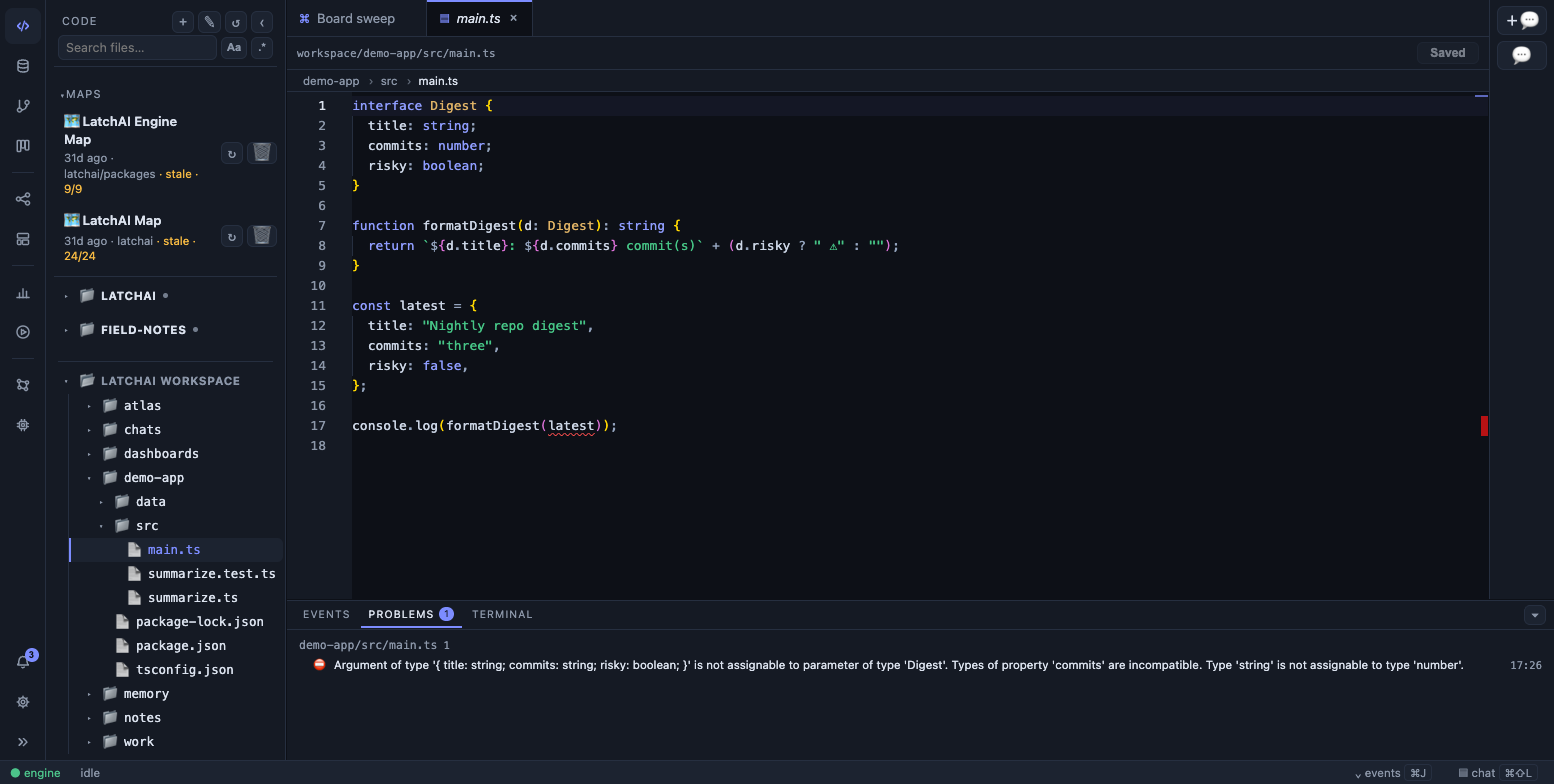
The Problems panel: diagnostics from the project’s own typechecker, grouped by file.
Terminal
Section titled “Terminal”Your own login shell, with your full environment, in the workspace directory, rendered by
xterm.js. It is a user surface and deliberately nothing else: it is not a tool, it is not in
the registry, and no agent or MCP path can reach it. An agent’s shell is run_shell, with
its scrubbed environment and its gate; this one is yours.
The engine enforces that boundary at the socket: the terminal’s WebSocket is accepted only
from a loopback peer, so it stays closed even when LATCHAI_BIND exposes the rest of the
daemon to a LAN. The shell lives as long as the socket does — switching to another tab or
collapsing the panel hides the terminal without killing it.
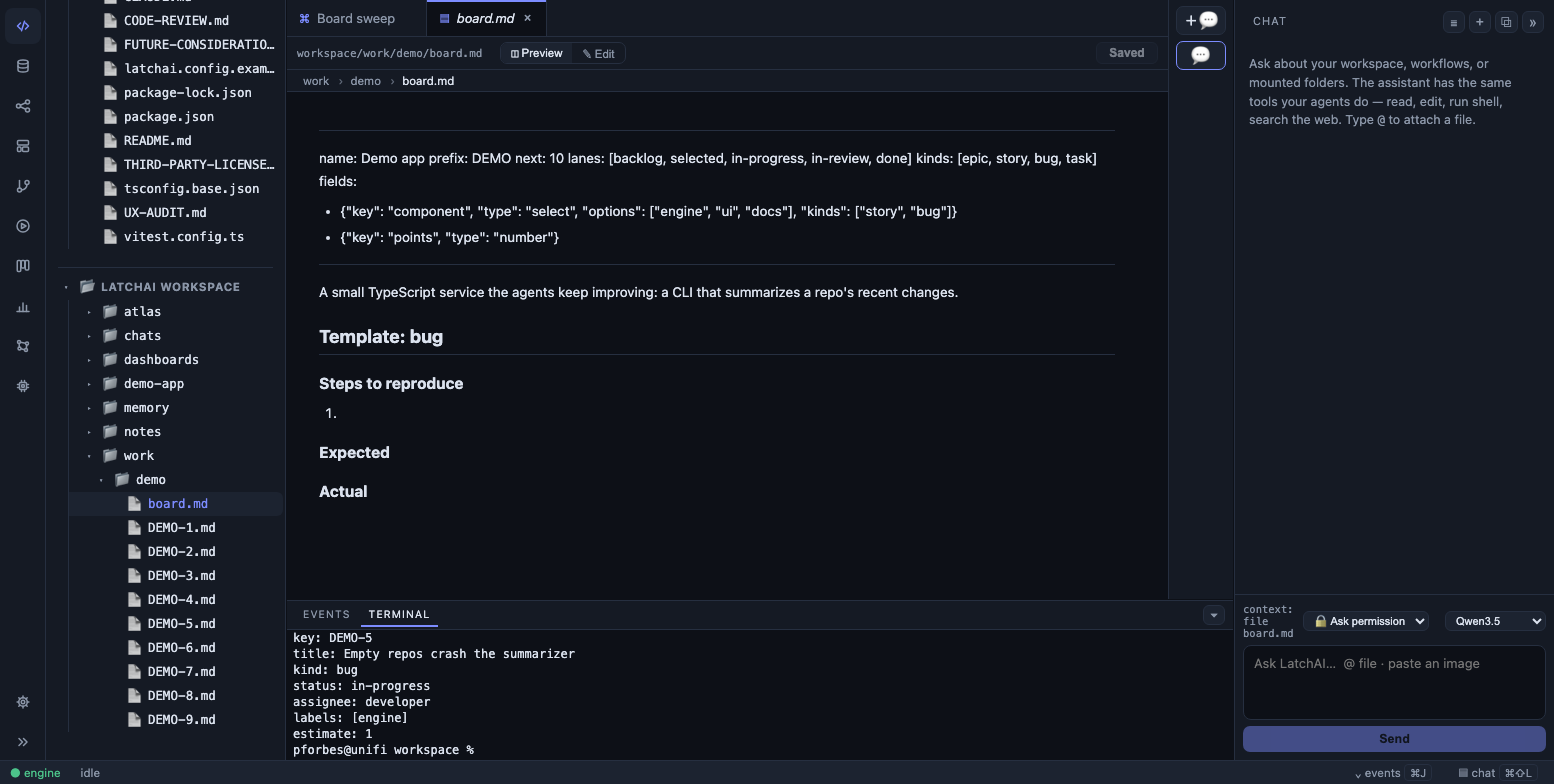
Your own shell, in the workspace, beside the file an agent is working on.
Settings ▸ General picks light or dark for the chrome; the default is dark, and the editors and the terminal keep a dark canvas in either — VS Code’s own “light chrome, dark editor” pairing.
The git panel is a review lens over your real repositories — deliberately not the shadow repository LatchAI uses for checkpoints.
It discovers every git repo under the workspace and your mounts (down to three levels,
up to fifty repos, skipping node_modules and friends), so nested project repos are
first-class rather than invisible. Pick one from the dropdown and the panel shows what its
current branch changed, file by file, with per-file +/− counts.
Four modes decide what “changed” means:
| Mode | Range |
|---|---|
| Auto | On a feature branch, everything since the merge-base with the default branch; on the default branch, the last commit |
| vs main | Always the merge-base range, whichever branch you’re on |
| Last commit | HEAD~1 forward |
| Working tree | HEAD forward — just the uncommitted work |
Every mode ends at the working tree, so uncommitted edits always show, and
untracked-but-not-ignored files are included as additions — an agent’s brand-new file is
part of the change under review before anyone runs git add.
Clicking a file opens the repo’s review tab with both sides side by side. The panel also
drafts a conventional-commit message with the configured provider, runs an AI review of
the range, and commits. A commit subject that names a live work item
key — DEMO-7: … — renders the key as a button that opens the item. Like the tree’s status
map, it refreshes itself as the repo changes on disk, behind a one-second settle.
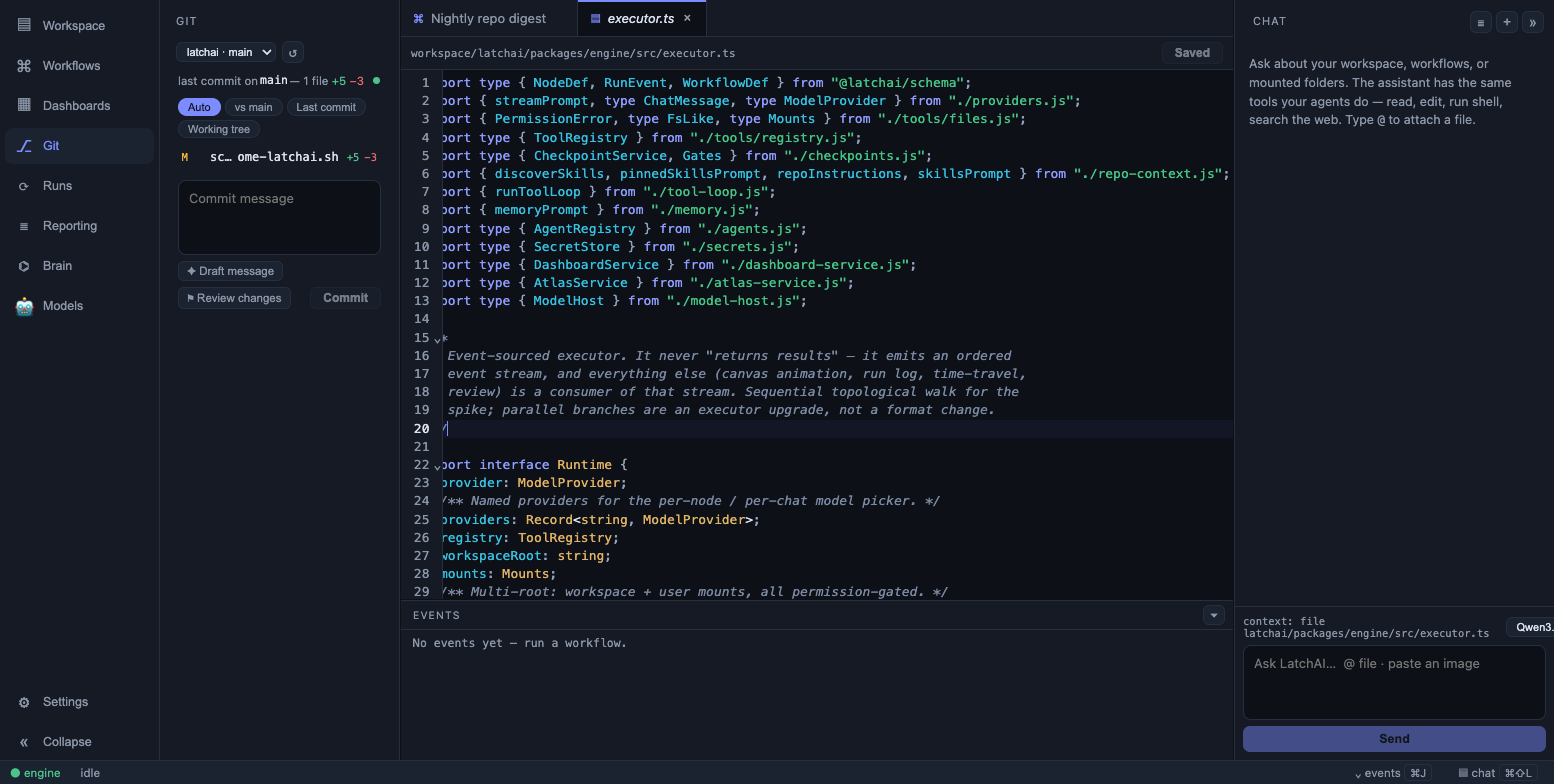
Status, an AI-drafted message, and a commit — against your real repo.
There is a containment rule worth knowing: every operation requires the chosen root to
be the repository toplevel. A directory that merely sits inside some other repository is
treated as “not a repository” for reads and refused outright for commits, so a stray
git add -A can never stage a worktree you didn’t mean to touch. Discovery only ever
yields directories that own a .git, so discovered repos always satisfy the rule.
With Monaco selected, the editor also draws a change gutter for the file you’re in, marking what is uncommitted on disk (not what is merely unsaved in the buffer) and refreshing when the file is saved or the repo moves underneath it.
Working-changes review
Section titled “Working-changes review”The review overlay can also be pointed at your current git diff for an AI review of work in progress — the same colored unified-diff surface used by review gates and chat-turn review. The result comes back as markdown findings, most important first.
Diagnostics for agents
Section titled “Diagnostics for agents”The Problems panel is for you. check_diagnostics is for the agents, and it is a different
mechanism: rather than host a language server, LatchAI runs your project’s own typechecker
on demand and parses the output into structured diagnostics — file, line, column, severity,
message. A project is detected by its tsconfig.json, and the check runs
npx --no-install tsc --noEmit in that root with a two-minute ceiling.
That is what lets an agent see and fix its own type errors before it claims to be done, and what a workflow step means when it verifies its own edits.
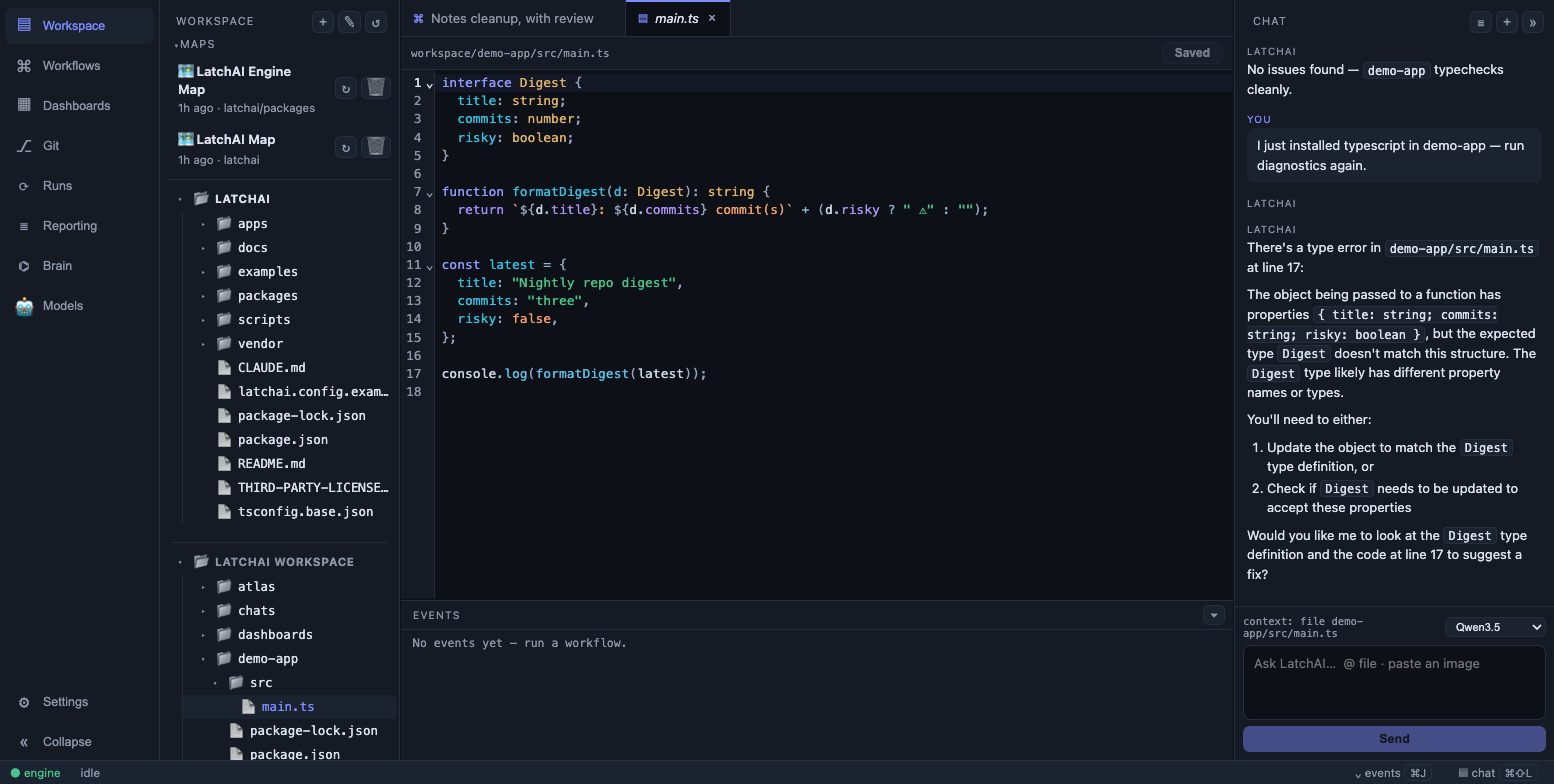
Diagnostics come from the project’s real checker, not a heuristic.
Syntax and theming
Section titled “Syntax and theming”Language is detected from the file name, with the workflow JSON view naming its language explicitly. The syntax palette is applied globally rather than per language, so JSON, markdown and TypeScript are coloured by one consistent scheme — and the diff viewer shares it, which is why a file reads the same way in review as it does in the editor.