MCP integrations
LatchAI is an MCP client. Servers are declared in mcp.json in your
LatchAI home, connected with the official SDK, and
their tools register into the same tool registry as the built-ins, namespaced
<server>_<tool>. Agents and chat see one tool surface; they do not know or care which
tools came from where.
Built-ins and MCP tools in one registry.
Edit mcp.json by hand, or use Settings ▸ MCP Servers, which validates what you type,
writes the same file, and reconnects the pool in place. Either way the shape is one object
keyed by server name:
{ "servers": { "<name>": { /* … */ } } }stdio servers
Section titled “stdio servers”A local process, spawned and spoken to over stdio:
{ "servers": { "fs": { "command": "npx", "args": ["-y", "@modelcontextprotocol/server-filesystem", "${workspace}", "${mounts}"] } }}Two substitutions happen in stdio arguments:
${workspace}expands to the absolute workspace directory — how you scope a filesystem server to the same tree LatchAI’s own tools are confined to.${mounts}fans out to one argument per mounted folder, and disappears entirely when there are none. Give a filesystem server both and its allowed-directory list covers every folder you have mounted. Servers whose args use${mounts}are reconnected automatically when you add or remove a mount, with no restart and no full-pool reload.
env adds environment variables for the child process. A server is stdio unless you say
otherwise, so command alone is enough.
HTTP servers
Section titled “HTTP servers”A remote Streamable-HTTP endpoint:
{ "servers": { "gateway": { "transport": "http", "url": "https://mcp-gateway.example.com/mcp", "headers": { "Authorization": "Bearer {{secret:GATEWAY_SK}}" } } }}{{secret:NAME}} references resolve from the secret store in both
stdio environment values and HTTP header values, so a token never sits in mcp.json. A
reference whose secret isn’t set fails the connection with a message that names it — secret
not set: GATEWAY_SK — add it in Secrets, then re-save — rather than sending the literal
placeholder as a credential and collecting 401s.
Declaring transport: "http" is optional when you give a url; a config with only a URL is
treated as HTTP.
Config reference
Section titled “Config reference”| Field | Applies to | Meaning |
|---|---|---|
transport |
both | "stdio" or "http". Inferred from command / url when omitted |
command, args, env |
stdio | The process to spawn, its arguments (${workspace} and ${mounts} expand), and its environment |
url |
http | The Streamable-HTTP endpoint |
headers |
http | Raw headers, with {{secret:NAME}} resolved |
auth |
http | "bearer", "headers" (the default) or "oauth" |
enabled |
both | false keeps the server declared but never connects it |
auth: "bearer" is the paste-a-token path in Settings: LatchAI stores what you paste as the
secret mcp.<server>.token — in your login Keychain on macOS — and writes only
{ "Authorization": "Bearer {{secret:mcp.<server>.token}}" } into mcp.json. Clearing the
token deletes the secret and the header together.
OAuth servers
Section titled “OAuth servers”auth: "oauth" uses OAuth 2.1 with Dynamic Client Registration and PKCE. LatchAI registers
itself as a public client (no client secret, authorization_code + refresh_token
grants), and the redirect comes back to LatchAI’s own origin at
/oauth/callback/<server> — no external callback host is involved.
The flow:
- LatchAI tries to connect. The server answers 401, so the SDK produces an authorization URL.
- That server’s status becomes needs authorization, an Authorize ↗ link appears on its row (LatchAI also tries to open the URL for you), and the connection is parked.
- Your browser lands back on
/oauth/callback/<server>, a small page served by the daemon itself. It exchanges the code, stores the tokens, reconnects, and tells you the tab can be closed. A refused or errored authorization says so on the same page instead.
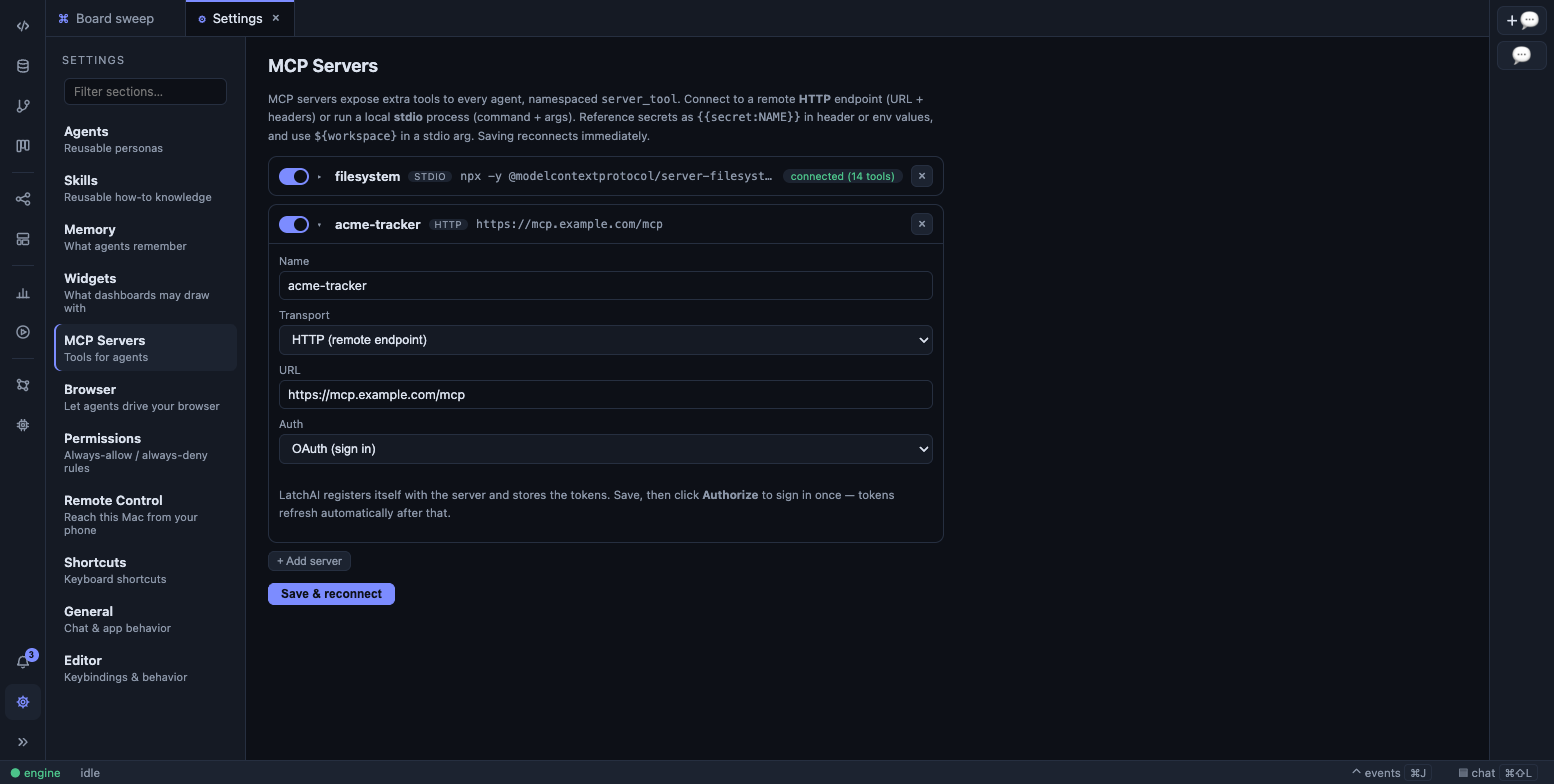
An OAuth server in Settings ▸ MCP Servers: the enable toggle, transport tag, Authorize link, and status.
Client registration, tokens and the PKCE verifier live in
<latchHome>/runs/oauth/<server>.json, written owner-readable only, and survive restarts;
access tokens refresh automatically. Log out disconnects the server, deletes that file,
and reconnects — which lands back in needs authorization with a fresh URL, so
re-authorising as a different account is one button.
Connection behaviour
Section titled “Connection behaviour”Connection is asynchronous and non-blocking: the daemon boots immediately and tools appear as servers come up. A server that is slow or down does not hold up the engine — it simply contributes no tools until it connects.
Each server reports a status you can read at a glance:
| Status | Meaning |
|---|---|
connecting |
Handshake in progress |
connected (12 tools) |
Registered, with the count |
needs authorization |
OAuth, waiting for you |
logged out |
Tokens deleted; reconnecting |
disabled |
enabled: false — declared, not connected |
failed: … |
The connection error, verbatim |
Saving from Settings reloads the whole pool: every client is closed, its tools are unregistered, and everything reconnects from the file. That is what makes a config change take effect without restarting the daemon — and it means a save briefly removes every MCP tool from the registry.
The enable toggle on a row is narrower: it persists the flag and applies it to that one
server — disabling drops just its client and its tools, enabling connects just it — with no
save and no pool reload. A server that fails to connect on enable keeps the flag and shows
failed: …, exactly as a save would.
Seeing what’s registered
Section titled “Seeing what’s registered”GET /api/status reports the active provider alongside registered tools and per-server MCP
health, and GET /api/tools is the catalog the tool pickers draw — MCP tools listed under
their server, built-ins under their family. From a source checkout,
npx tsx packages/engine/src/cli.ts tools prints the whole registry.
Tool results come back as their text parts joined together. An image part becomes a real
picture in the transcript (and reaches a vision model as one); any other non-text part
appears as a [type] placeholder. A server-reported error becomes a failed tool call the
model sees and can react to — errors are never truncated, since a clipped error message is
worse than a long one.
A long result is capped at 20,000 characters, and the cap announces itself first: MCP defines no generic paging, so the note tells the model to narrow the request — fields, filters, pagination arguments — rather than to re-read at an offset that doesn’t exist.
Permissions
Section titled “Permissions”Every MCP tool falls into the “unknown effect” class: LatchAI cannot know what
gateway_delete_everything does, so an MCP call asks while a human is watching, and in
an unattended workflow run takes the default from Settings ▸ Permissions. “Always
allow” on the prompt persists a rule for that tool name.
Restricting what an agent can reach
Section titled “Restricting what an agent can reach”An agent’s tools frontmatter (or a workflow node’s config.tools) is an allowlist over
the combined registry, so granting an agent one MCP server’s tools without granting it
shell access is a one-line change:
---name: jira-reporterdescription: Reads Jira and writes a status note.tools: [atlassian_searchJiraIssuesUsingJql, atlassian_getJiraIssue, write_file]---The allowlist is enforced in the tool loop, not just used to filter what the model is shown, so a restricted agent cannot reach a withheld tool by guessing its name.
Wiring one, end to end
Section titled “Wiring one, end to end”-
Settings ▸ MCP Servers → add, name it
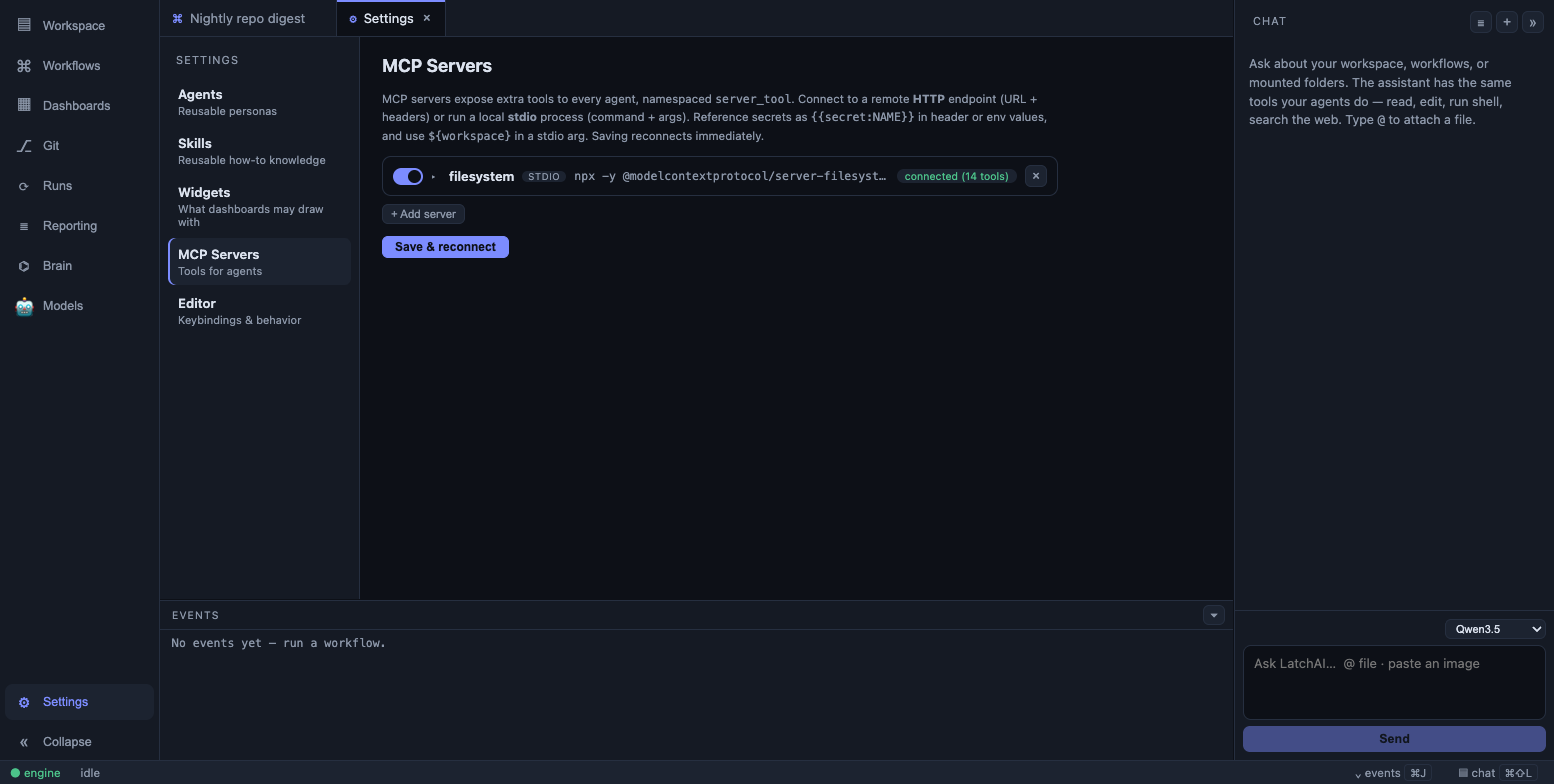
fs, commandnpx, args-y @modelcontextprotocol/server-filesystem ${workspace} ${mounts}(one per line). Save. The row should turnconnected (N tools). -
Check the names it contributed — they will be
fs_read_file,fs_list_directoryand so on./api/toolsor the CLI lists them. -
Use them from a workflow node like any built-in:
{"id": "summarise","type": "agent","position": { "x": 320, "y": 160 },"config": {"prompt": "List everything under out/ and summarise what changed today.","tools": ["fs_list_directory", "fs_read_file"]}}
Every call shows up as a tool.call / tool.result pair in the events panel and the
Run Monitor, exactly like a built-in.